How to insert HTML email with variables in Gmail
Fill names, links, and HTML blocks in Preview. Insert bakes tokens so they never go out with the letter.
Key takeaways
-
✓
Put
{{clientName}}in the HTML. Fill the value in Preview. Insert bakes it to "Hi Mira,". - ✓ Four types: text, link, image, HTML block. Same name in many spots is one field.
- ✓ One HTML template, many clients. Reuse the same letter from Gmail compose — fill names, links, and blocks before each send.
-
✓
Leftover
{{tokens}}block Insert, so the client never sees curly braces.
To insert an HTML email with variables in Gmail, mark the bits that change with {{ident}} tokens, fill this send in html2email Preview, then hit Insert. The extension replaces names, CTA links, images, and HTML blocks before the letter hits compose. Gmail gets baked HTML, same as a normal formatted send. Tokens stay in the editor.
We built this for people who send the same layout to Mira on Tuesday (for example) and to Alex on Thursday from Gmail, without opening Mailchimp. Quotes, membership updates, project notes: one template, fill new values, then Insert.
What are HTML email template variables?
A variable is a named placeholder in the markup:
{{ident}}only. Ident starts with a letter or underscore, then letters, digits, underscore.- No
{{name|default}}, no Mailchimp*|FNAME|*, no Gmail@firstnamechips. - The same ident in five places is one field. Change it once, Preview updates all five.
Edit HTML still shows the token. Preview shows the substituted letter plus a {} badge with the unique token count in the current HTML.
How do I insert an HTML email with variables in Gmail?
Mark what changes, fill this send, then Insert. You do not rewrite the letter each time.
- Install html2email (Gmail/Yahoo) and pin it.
- Open Compose, click the html2email icon.
- Load a template, or paste HTML.
- Add fields. In Preview: open the
{}panel, hit Pick, click a heading (or a price, a button), Create & Assign, name ittitle. Or type{{clientName}}in Edit HTML. - Fill this-send values. Empty value uses the library default.
- Insert. html2email bakes, then drops formatted HTML into Gmail.
Copy HTML uses the same fill panel, then copies baked markup. Save stores tokens in the template. Session values stay while this dialog is open; they are not written back into the field library. The library is global, not per template, so you can reuse similar fields (name, CTA, hero) across letters.
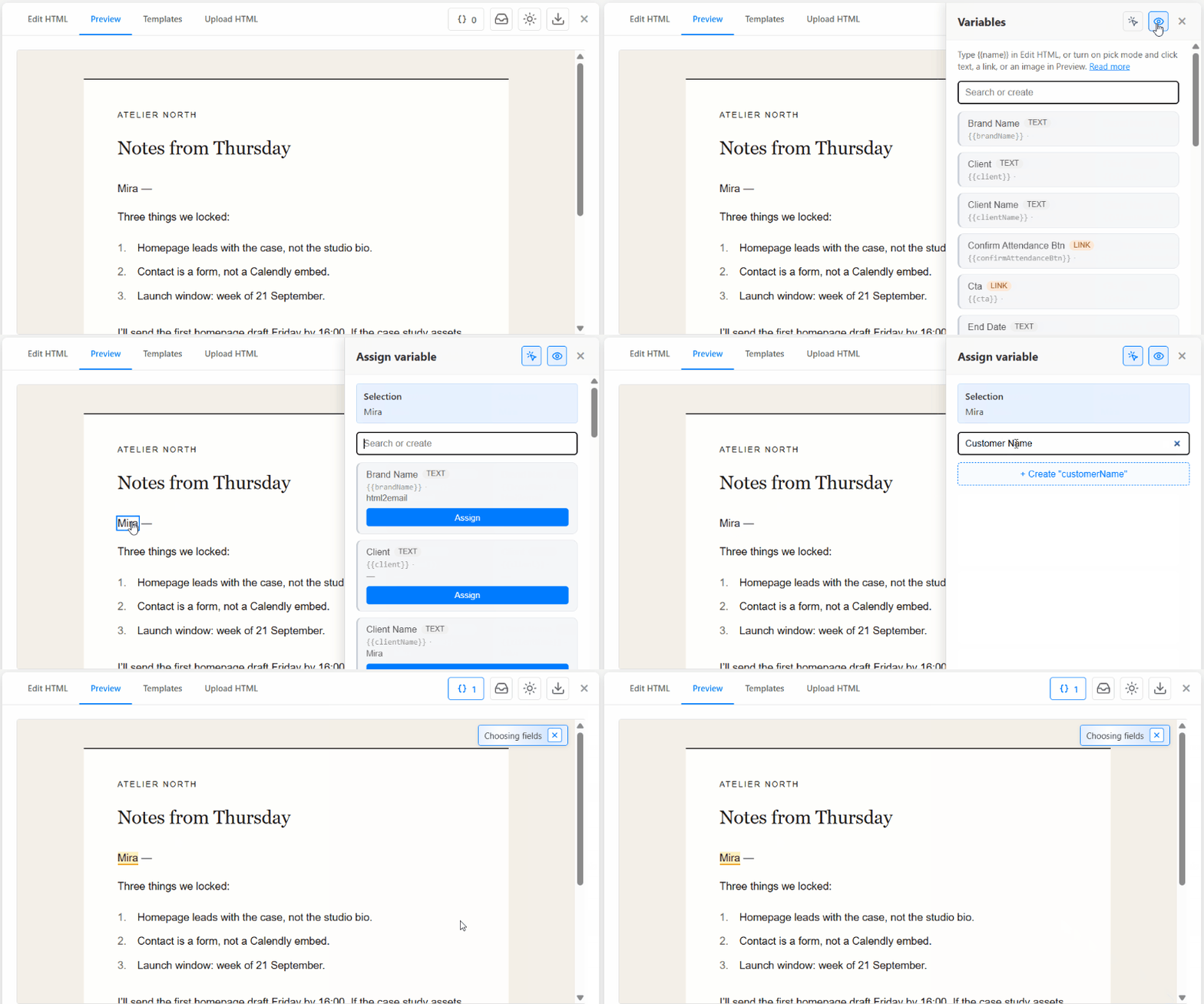
Pick a heading in Preview, name it title, Create & Assign. Field count ticks up. No HTML hunt.
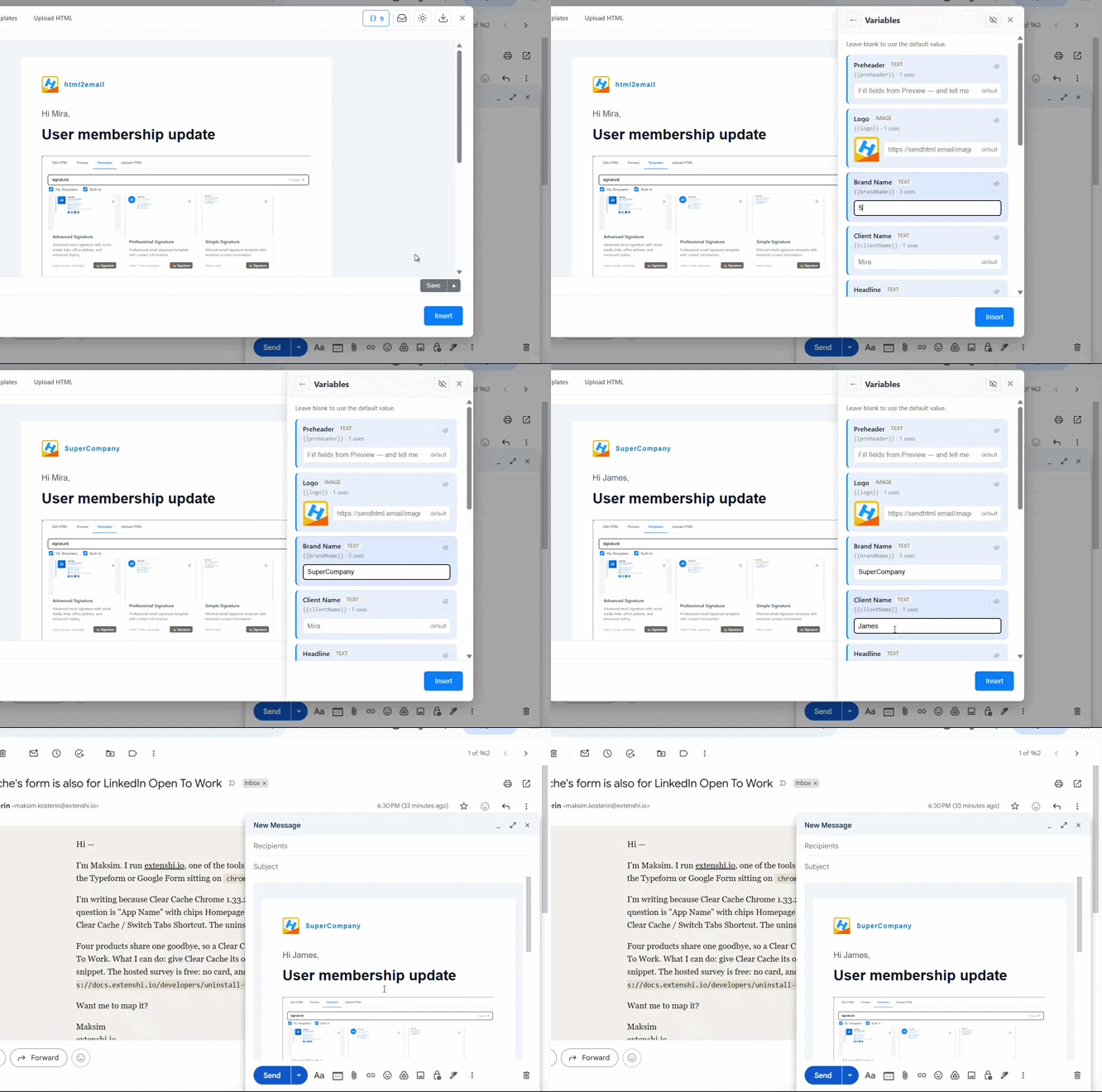
Then fill the panel and Insert. Compose gets the baked letter. Tokens stay out of the body.
What variable types can I use?
Pick the type that matches the slot, or html2email infers it when you click a link or image in Preview.
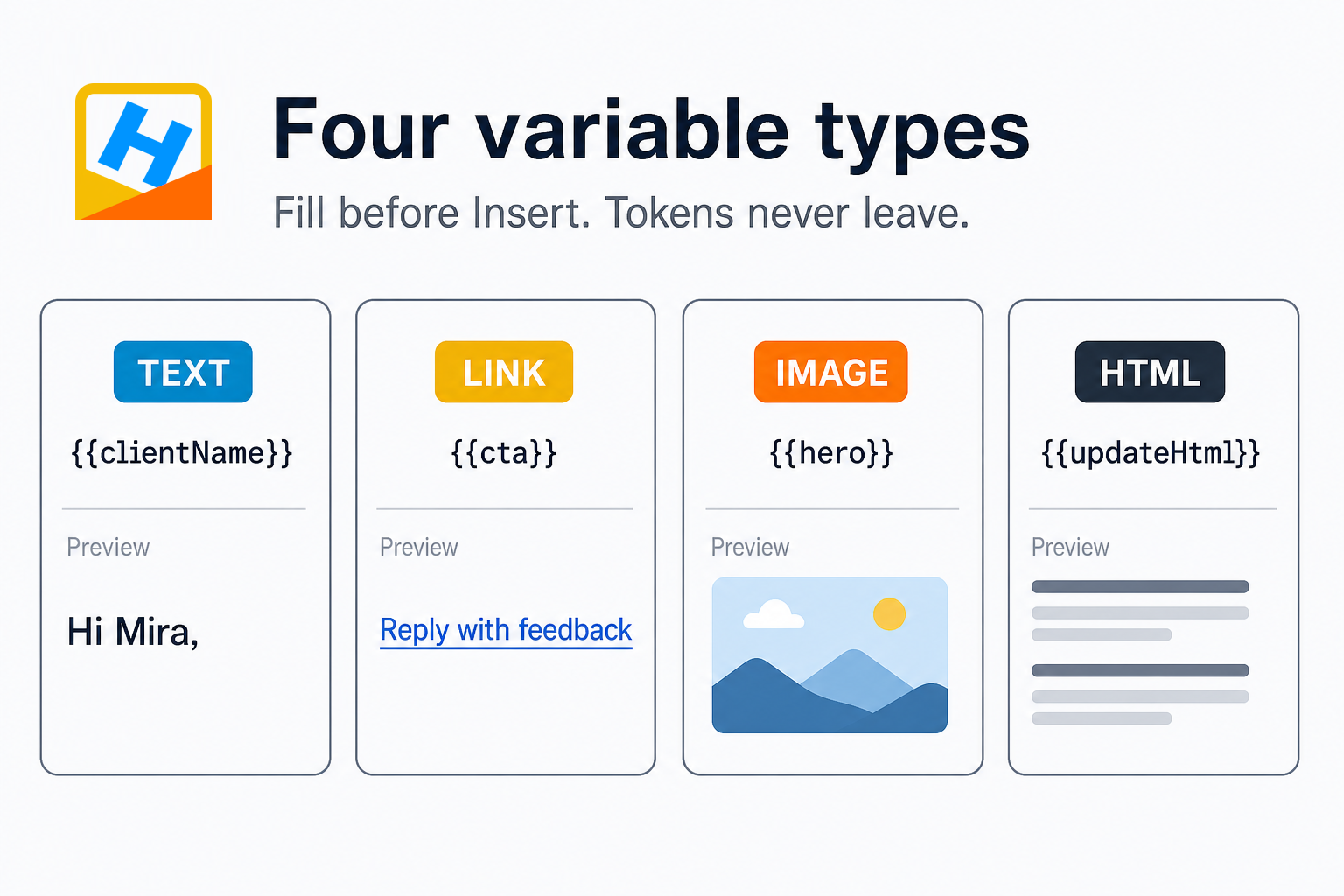
Text, link, image, HTML. One ident per field, reused across the letter.
| Type | Token example | What bakes |
|---|---|---|
| Text | {{clientName}} |
Escaped text. "Hi Mira," |
| Link | {{cta}} |
Title + URL on the <a> |
| Image | {{hero}} |
Publicly available HTTPS image URL |
| HTML | {{updateHtml}} |
A sanitized block (no script / iframe / on* handlers) |
Tokens inside attributes such as alt stay as values only. Wrapping those in a preview <span> would split the quote and dump tag leftovers as visible text. We learned that the hard way in Preview QA. href and src get chrome on the owning tag instead.
How is this different from Gmail mail merge?
Gmail's own mail merge personalizes a blast with @firstname tags from Contacts or a Sheet. Google’s Help article lists the flow: Compose → Use mail merge → type @. Merge tags do not work in every Gmail message type. The product is built for many recipients in one send.
html2email Variables fill one HTML letter you are about to send. You reuse the layout, type Mira's name (or her booking URL) in the panel, Insert, send. There is no Sheet and no ESP. Same Gmail send you already do.
| Need | Use |
|---|---|
| 200 contacts, first name from a Sheet | Gmail mail merge (Google Help) or Apps Script {{First name}} |
| Same HTML letter, new client, new CTA, today | html2email Variables, then Insert |
| Saved Gmail canned template | Keeps formatting. No {{merge}} fields |
| List-blast from Mailchimp / Klaviyo | Those tools' merge tags. Different product |
Source for native merge: Send personalized emails with mail merge. Apps Script sample uses {{Column Header}} mapped to Sheets, which is still a bulk pipeline, not a compose-time HTML editor.
Popular use cases
Once you can pick a field, the same panel covers the jobs people actually run from Gmail compose.
How do I fill prices in a client proposal?
The built-in Client Proposal (Templates, professional) is a scope-and-fee letter: three line items plus Total. Pick those four amounts as text fields. Next quote: open the template, type the new numbers in the panel. Preview updates the table. You do not hunt through nested <td>s.
We use this for quotes from Gmail compose. One layout, new numbers, then Copy HTML or Insert. Same pattern for any fee table: discovery, design, build, total.
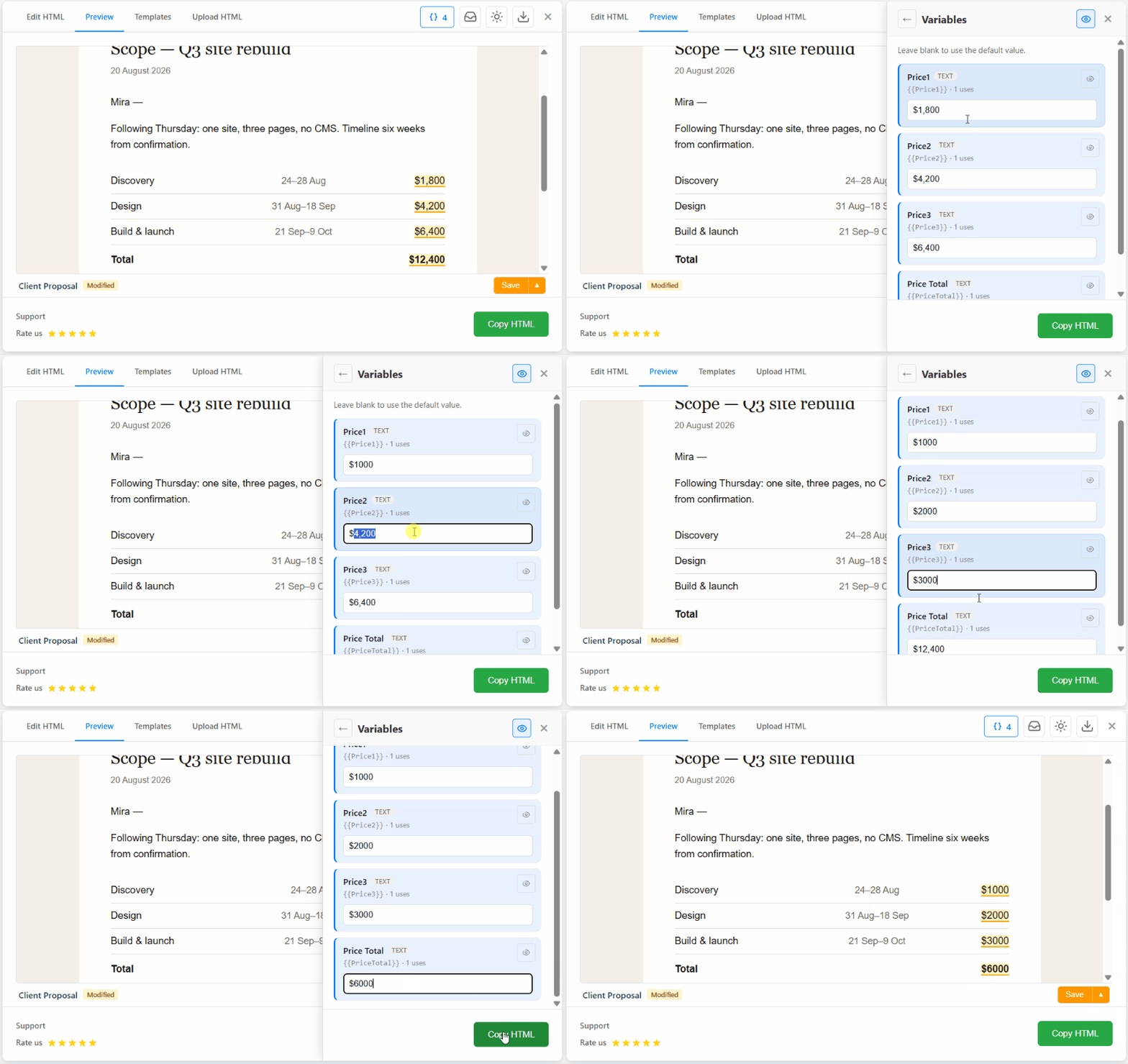
Four price fields on Client Proposal. Change the numbers in Variables, the table in Preview follows.
How do I replace a signature with an HTML variable?
HTML type is for a whole block, not a word. Typical case: swap a plain signature for a table with logo and socials. Same move for a legal footer or an "update this week" body.
- In Edit HTML, select the current signature markup and copy it.
- Replace that chunk with
{{signatureField}}. - Open Variables, paste the old markup into Default. Type must be HTML.
- Preview shows the old signature, outlined as a field.
- Copy HTML (or Insert) to bake. Next send: paste the advanced signature into the field value, Copy again. Preview shows the new block. Layout around it stays.
Default keeps the original so you can roll back. The value you type for this send is what bakes. Tokens stay in Edit HTML.
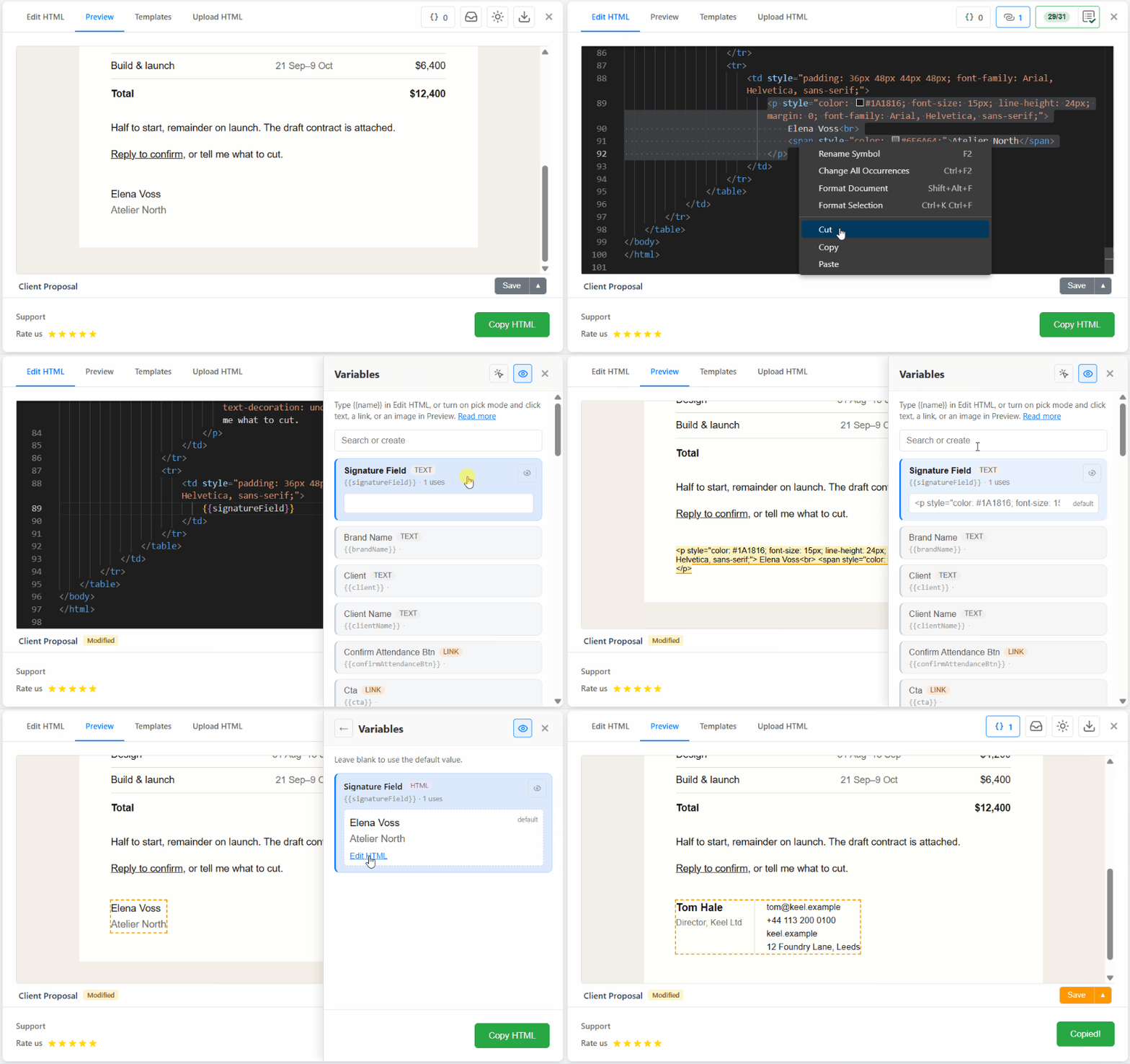
Copy the old signature into Default (type HTML), then paste a richer block on the next send. Preview shows the swap.
How do I change a CTA or hero image per send?
Assign the <a> as type link. Fill Title and URL for this email. The baked href must still be a real URL. The link checker in Editor is the place to catch 404s and UTM edits after bake, or on the static parts of the template. Guide: valid href in email.
Hero: assign the image, paste an HTTPS src. Host the file. Drive share links fail in clients the same way they fail in a signature.
Can I reuse one HTML template for every client?
Save the letter to My Templates with tokens still in the source. Next send: open it, change clientName, swap the CTA URL, Insert.
Example we use internally: a membership-update HTML with Hi {{clientName}}, a headline slot, an HTML body, and a mailto CTA. Per recipient we only fill the name. Headline and body stay on defaults until a campaign week needs new copy. Small SaaS and local-service buyers already send this way from Gmail. They were not looking for another ESP.
Capture still helps when the starting point is someone else's mail. Pull the body, mark the name and the button, save. Next time you skip the HTML hunt. See the welcome walkthrough for pin → insert → capture.
Do merge tags appear in the sent email?
Bake runs on Insert and on Copy HTML:
- Read every
{{ident}}in the current HTML. - Replace with this-send value, or default if the value is blank.
- If any valid token remains, stop. Error lists the leftovers.
If a known field has both empty default and empty value, you get one confirm per session ("insert anyway?"). Dismiss and those bake to empty string. That leak guard ships in 1.9.0. It is not a Mailchimp-style fallback filter.
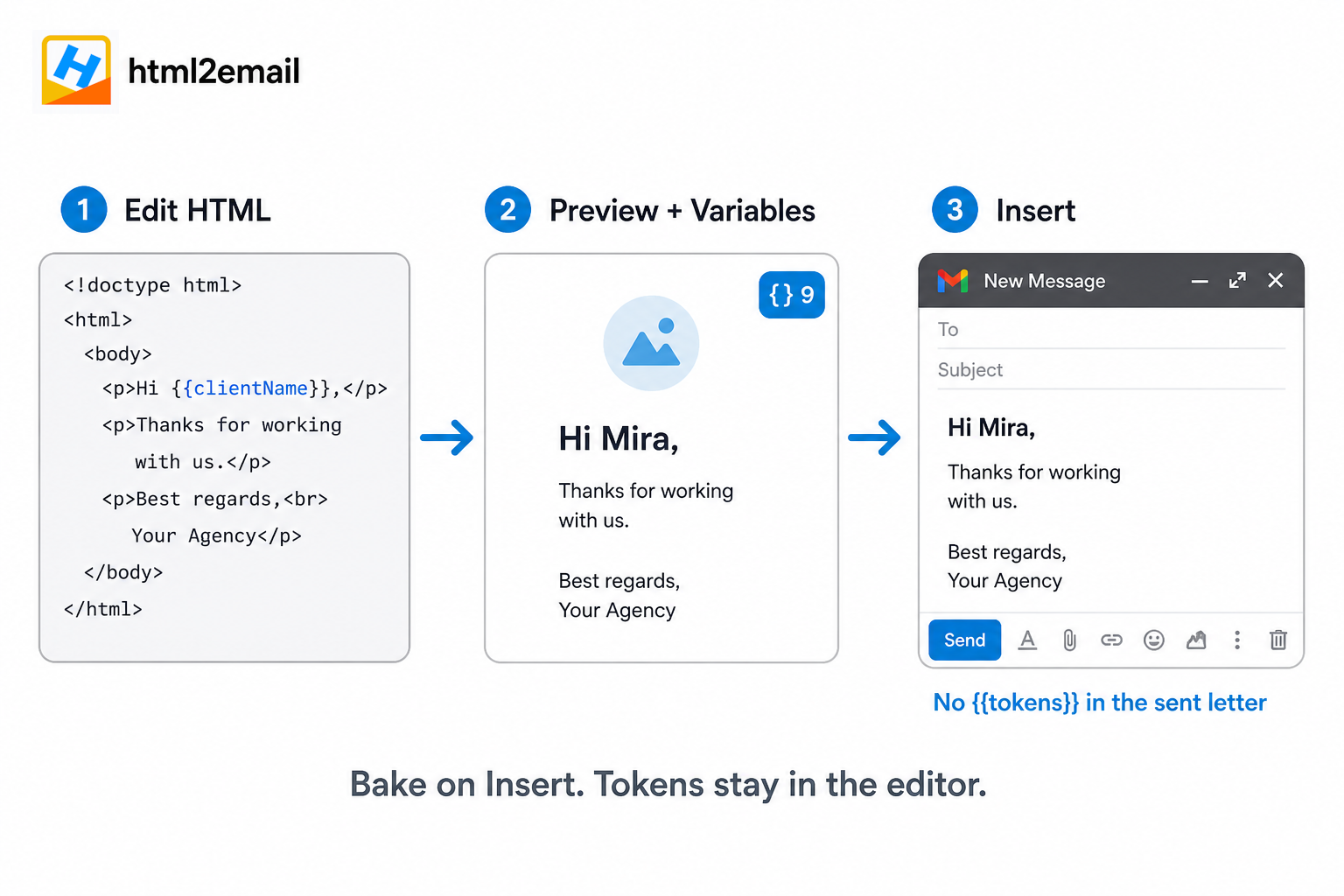
Edit HTML keeps tokens. Preview shows the fill. Insert bakes, so nothing curly leaves the editor.
What happens if a field is empty on Insert?
- Value set → that string (or URL / HTML) bakes.
- Value blank, default set → default bakes. No prompt.
- Both blank → confirm once, then bake empty, or cancel and fill.
- Stray
{{oops}}that is not a known ident still matches the token pattern → Insert blocked.
Defaults live in the Variables library UI, not inside the token. That keeps slots with HTML values readable.
Common mistakes
Spaces in the name. {{First name}} is not a slot here. Use {{firstName}}. Apps Script merge uses column headers with spaces; we do not.
Expecting Gmail @ tags to fill html2email tokens. Different systems. Bake happens in the extension, before Gmail sees the body.
Pasting raw HTML into compose. You still need Insert so Gmail renders tables, not tags. Variables do not change that. Same rule as Vacation responder.
Sending a list from Variables. One compose, one recipient (or a normal To: line you type). For a 500-row Sheet, use Gmail merge or an ESP.
Conclusion
Mark {{ident}} in the template, fill Preview, then Insert. html2email bakes first. You keep one client-ready layout. Names, links, images, and HTML blocks change per send. Tokens never leave the editor. That is the 1.9.0 workflow: one HTML template, many clients, from Gmail. Not a new ESP.
Frequently asked questions
Related resources
Ready to insert with variables?
Install html2email, mark {{clientName}}, fill Preview, Insert
 Gmail/Yahoo
Free plan available · See pricing