How to Create a Gmail Signature (HTML, Logo, Mobile)
Paste raw HTML into Gmail Settings and you get tags as text. With html2email, use the </> button in Signature settings, pick a free template, Insert, then Save Changes. Or build one in the free HTML signature generator.
Video Tutorial
Key takeaways
- ✓ Gmail has no raw-HTML mode in Signature settings. Pasting markup as text shows tags.
- ✓ html2email adds a </> button on Settings → General → Signature (after Insert image).
- ✓ Prefer a ready template? Use the free HTML email signature generator, copy the HTML, then Insert via </>.
- ✓ Search Templates for “signature” (Advanced, Professional, Simple) and click Insert.
- ✓ Always click Save Changes at the bottom of Gmail Settings. The extension does not auto-save.
- ✓ Gmail caps signatures at about 10,000 characters; host images on HTTPS URLs.
To add an HTML email signature in Gmail, install html2email, open Settings → General → Signature, click the </> toolbar button, pick a signature template (or paste your HTML), Insert, then Save Changes. Gmail will not render raw tags if you paste them as plain text.
Why does pasting HTML into Gmail signature fail?
Gmail’s signature box is a rich-text editor, not a code field. Paste <table>... and you see the tags. The old workaround: open the HTML file in a browser, select the rendered page, copy, paste into Settings. That works, but it is slow and easy to break.
html2email injects the same </> control you already use in Compose into Settings → General for Signature (and Vacation responder). You edit HTML in the dialog, preview it, then Insert into the Gmail field.
How do I insert an HTML signature in Gmail Settings?
- Install the Gmail/Yahoo html2email extension and reload Gmail.
- Open Gmail → gear → See all settings → General.
- Under Signature, create or select a signature.
- In the signature toolbar, click </> (after Insert image).
- Use Templates, Edit HTML, or Upload HTML, then Insert.
- Scroll to the bottom and click Save Changes.
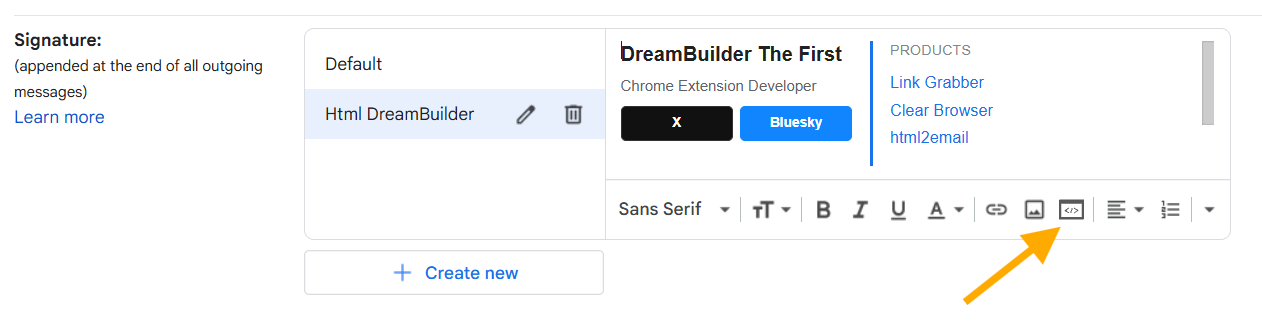
Gmail Settings → Signature: the </> button from html2email sits in the formatting toolbar after Insert image.
How do I pick a free signature template?
In the html2email dialog, open the Templates tab. Search for signature. Built-in options include Advanced Signature (avatar, social row, address), Professional Signature (cleaner contact block), and Simple Signature (name + essentials).
- Filter My Templates and Built-In as needed.
- Open Preview to check layout before Insert.
- Edit names, links, and image URLs in Edit HTML if you want a custom brand look.
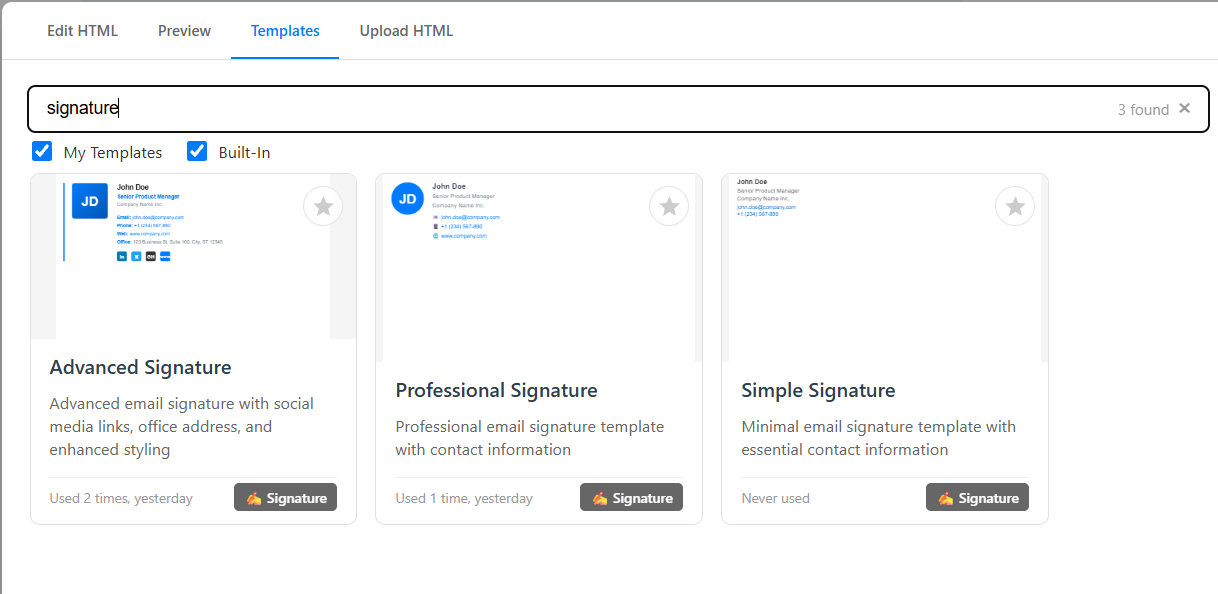
Templates tab: search “signature” to list Advanced, Professional, and Simple built-in layouts.
What should I know before saving?
- Save Changes is required. Leaving the Settings page without it drops the edit.
- Google documents a roughly 10,000 character signature limit (HTML markup counts).
- Use hosted HTTPS image URLs; do not embed local files.
- Gmail mobile apps have a separate plain-text Mobile Signature. Turn it off or keep it short so you do not get a double footer.
- Same </> flow works for Vacation responder HTML on the same Settings page.
Prerequisites
Chrome or Chromium (Edge, Brave), the free html2email extension from the Chrome Web Store, and a Gmail or Yahoo account. No coding required for built-in signature templates. Full customize pass: about 5–10 minutes.
Step-by-step: templates to Gmail
1. Install. Add html2email for Gmail/Yahoo, then refresh mail.google.com.
2. Open Signature settings. Gear → See all settings → General → Signature → Create new (or pick an existing one).
3. Open </>. Click the code button in the signature toolbar.
4. Choose a template. Templates → search “signature” → select Advanced, Professional, or Simple.
5. Customize. Replace name, title, company, phone, site, and social links. Host logos on your site or CDN.
6. Insert and save. Insert into the signature field, set Signature defaults for new mail / replies, then Save Changes.
7. Test. Compose a mail to yourself and check desktop + phone.
Yahoo still uses Settings → Writing email → Signature; you can paste a rendered signature or insert from Compose with html2email where the toolbar is available.
Tips and best practices
Keep it short. Aim for 4–6 lines of essentials. Dense signatures clip on mobile.
Inline CSS and tables. html2email signature templates already use email-safe layouts. Avoid external stylesheets and <style> blocks.
Brand colors, web-safe fonts. Arial, Helvetica, Georgia, or Times New Roman survive most clients.
Test clients. Spot-check Gmail, Outlook, Yahoo, and Apple Mail before you roll the signature out company-wide.
Common mistakes to avoid
Pasting raw source into Settings. Use </> Insert or copy rendered HTML from a browser preview.
Skipping Save Changes. The signature field looks updated until you leave without saving.
Attaching images. Only HTTPS URLs. Drive “share” links often fail; use a direct image URL.
Overbuilding the layout. Multi-column flex/grid and JS do not belong in signatures.
Leaving Mobile Signature on. That plain-text line stacks under your HTML signature on phones.
How do I update or change a signature in Gmail?
Open Gmail, click the Settings gear, choose See all settings, and open the General tab. Scroll to Signature, select the signature you want to edit, and change the content in the box.
When you finish, scroll to the bottom of the page and click Save Changes. The path is the same as when you first create a signature.
How do I add a logo or picture to a Gmail signature?
Your image must be a public HTTPS URL, not a file pasted from your disk. Gmail often rehosts the image on its servers after you insert it.
Keep logo width around 80–120px and add alt text for accessibility. Use the free HTML email signature generator to build a signature with a logo, or start from a simple text layout with a side rule.
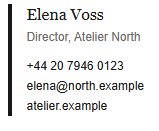
A table-based HTML signature: name, role, phone, and mailto links.
The example above shows Elena Voss, Atelier North: name, role, phone, and mailto links beside a vertical rule. Google caps signatures at 10,000 characters, and HTML markup counts toward that limit.
How do I add a signature in the Gmail Android app?
In the Gmail app, open the menu, tap Settings, choose your account, then Mobile Signature. That field accepts plain text or very limited formatting only.
The HTML signature you set on the web in Gmail Settings is what desktop and web Gmail send on outgoing mail. The Android app does not render full HTML signatures the same way. Leave Mobile Signature blank or keep it short to avoid a double footer under your web signature.
How do I remove a signature from Gmail?
Go to Settings → See all settings → General → Signature, select No signature, and click Save Changes.
If a signature still appears when you compose, uncheck the signature option in the compose window toolbar before you send.
How do I add an image to a Yahoo Mail signature?
Open Yahoo Mail settings and go to Signature. Use a hosted HTTPS image URL, not a local file from your computer.
You can build the HTML in html2email and insert it into Yahoo the same way you do for Gmail. The same rules apply: public image URLs, inline CSS, and table-based layout for reliable rendering.
Conclusion
An HTML email signature in Gmail is a Settings job: </> → template or your HTML → Insert → Save Changes. Free signature templates in html2email cover Advanced, Professional, and Simple layouts so you skip the render-and-copy ritual. Install the extension, set the signature once, and keep links current as your role changes.
Frequently Asked Questions
Related Resources
Ready to Send Beautiful HTML Emails?
Install the free extension and get started now
 Gmail/Yahoo - Free
Free plan available · See pricing